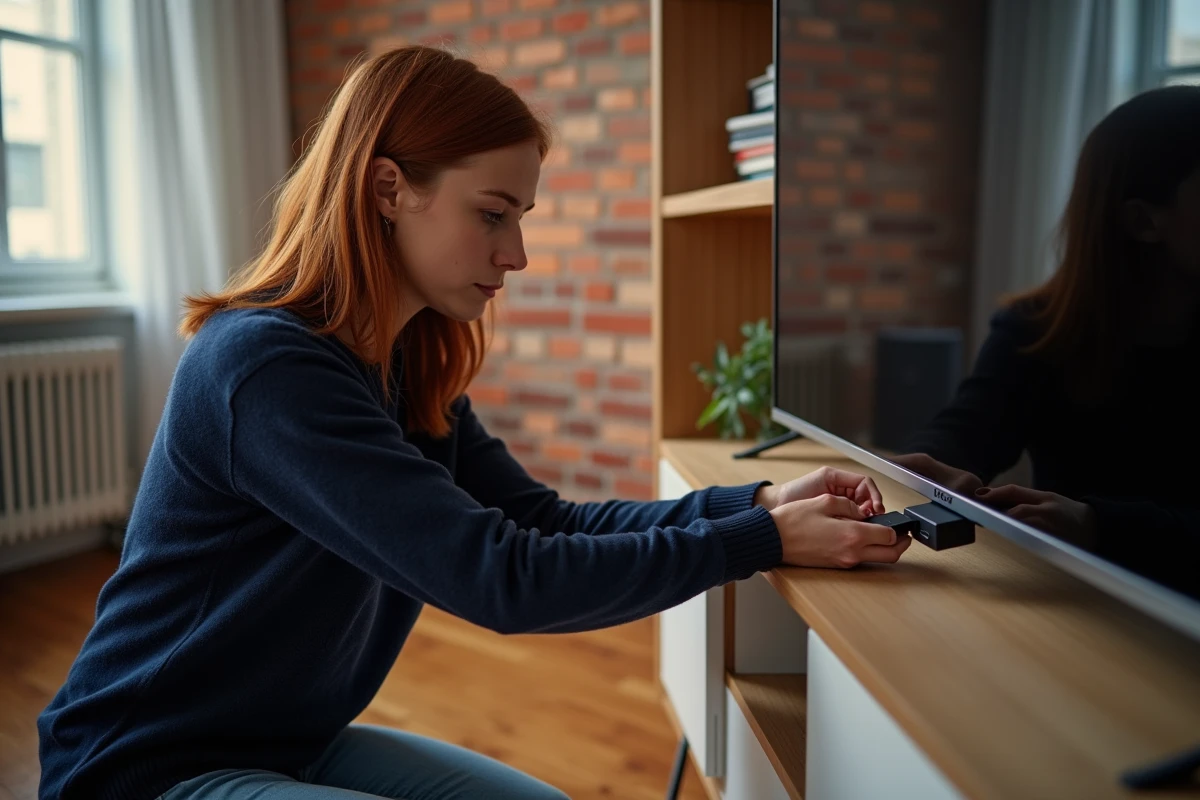
Connecting a Mi TV Stick to a television takes just a few seconds. However, receiving live French channels requires a bit more method, as this Android TV stick does not pick up digital terrestrial television (DTT) by itself. Everything goes through the Wi-Fi network and dedicated applications. This guide details the concrete steps to transform this small HDMI dongle into genuine access to TV channels.
Why the Mi TV Stick does not natively receive DTT
The Mi TV Stick is a multimedia player running Android TV. It connects to an HDMI port and accesses the internet via Wi-Fi. It does not include any DTT tuner, unlike a traditional decoder or a television equipped with a terrestrial receiver.
To watch TF1, France 2, M6, or other French channels, you need to use OTT applications that stream the feeds. The principle is simple: the channel is captured by the application’s servers, then transmitted via your internet connection to the stick, and then to your screen.
If you want to know how to receive TV channels via Mi TV Stick, the answer is summed up in one word: applications. Choosing the right application radically changes the experience.
Free applications to watch channels on Mi TV Stick
Several applications allow access to live French channels from the Google Play Store, which is already integrated into the stick. Here are the three most reliable options.
- Molotov: this application provides access to most DTT channels in its free version. The interface is clear, navigation is fast, and replay is included to watch a missed program.
- Free TV (OQEE by Free): accessible even without a Free subscription, this application offers over 170 live channels. It also includes live control and start-over, two features that allow you to pause or resume a show from the beginning.
- Kodi with the Catchup TV module: for users comfortable with setup, Kodi allows centralizing streams from TF1, M6, France Télévisions, and other groups. Each channel requires creating a free account on the broadcaster’s website.
Molotov and Free TV work right after installation, without any technical adjustments. Kodi requires more time but offers greater flexibility in choosing sources and organizing channels.
Set up Wi-Fi and Google account first
Before installing any application, two prerequisites condition the proper functioning of the stick.
Stable Wi-Fi connection
The Mi TV Stick relies entirely on the wireless network to stream channels. An unstable connection causes interruptions, buffering, and degraded image quality. Place the stick within five meters of the router or use a Wi-Fi repeater if the internet box is in another room.
Recent models like the Xiaomi TV Stick 4K Gen 2 include Wi-Fi 6, which improves stability on compatible networks. If your router supports this standard, the live video stream becomes smoother, especially when multiple devices share the connection.
Mandatory Google account
Upon first startup, the stick requires a connection to a Google account. This account provides access to the Google Play Store, where all the applications mentioned above are located. Without this account, it is impossible to download anything.
The setup assistant guides you through each step: choosing the language, connecting to Wi-Fi, and then Google identification. The entire process takes less than ten minutes if the account password is ready.
Live control and start-over: what traditional guides overlook
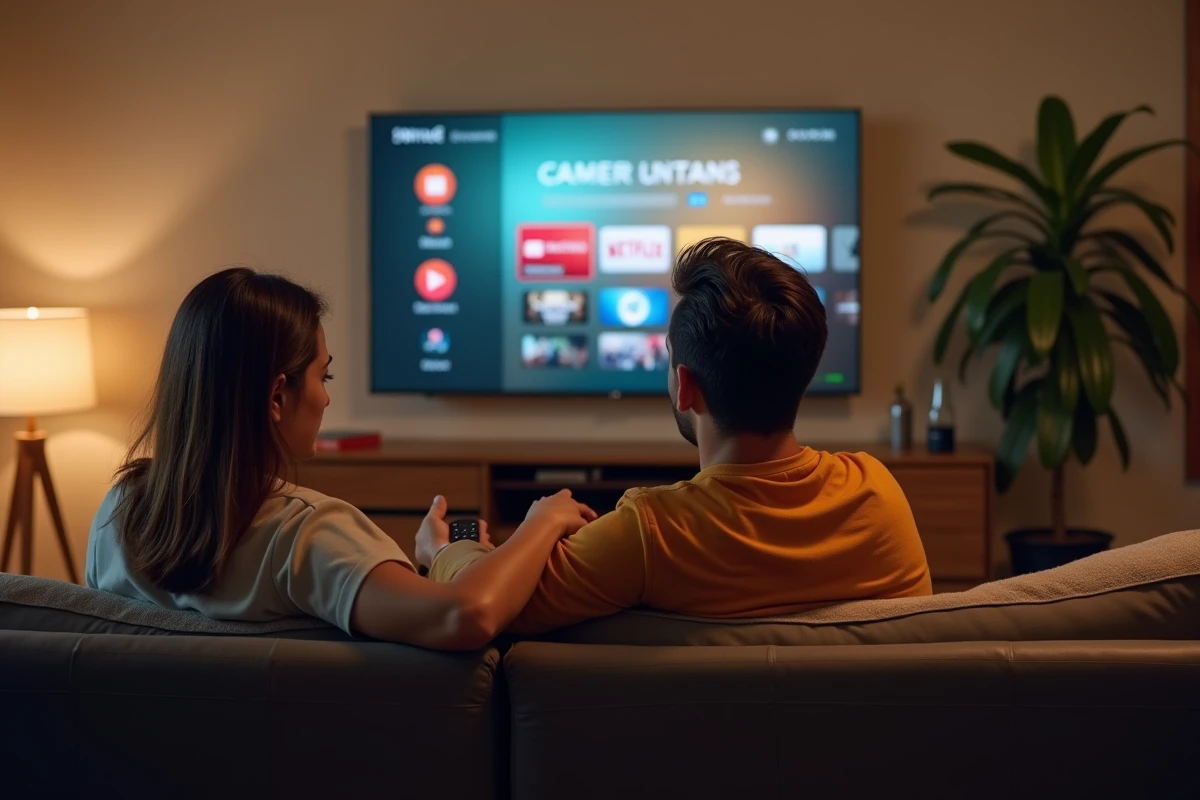
You are watching a movie on France 2, and someone rings the doorbell. With a traditional DTT tuner, you miss the scene. With Free TV or Molotov on the Mi TV Stick, you can pause the live broadcast and pick up exactly where you left off.
The start-over feature goes further. If you turn on your stick while a show has started twenty minutes ago, the start-over allows you to restart it from the beginning. This function is explicitly offered by Free TV on Android TV.
These two features transform daily usage. They alone justify the switch from a traditional DTT antenna to a connected stick because they provide control over live broadcasts that terrestrial broadcasting does not allow.
Troubleshooting common issues on Mi TV Stick
Several situations frequently arise for users starting with this type of device.
- Choppy image or constant buffering: check the quality of the Wi-Fi signal. Move the stick closer to the router or switch to the 5 GHz band if your network offers it.
- Application not found on the Play Store: some applications are not optimized for Android TV. They do not appear in the stick’s Store but can still be installed via an APK file from a USB drive.
- Remote control not responding: hold down the back and home buttons simultaneously for a few seconds to re-pair the Bluetooth remote with the stick.
- Audio out of sync with video: in the stick’s settings, disable advanced audio processing (Dolby, DTS) if your television does not handle it natively.
The majority of issues stem from the Wi-Fi network. A stick connected via a wired connection using a USB-Ethernet adapter (sold separately) eliminates almost all stability problems, but few guides mention this.
The Mi TV Stick remains one of the most compact and affordable ways to access French channels without an antenna. The quality of the experience primarily depends on the internet connection and the choice of application. With Free TV or Molotov installed on a stable Wi-Fi network, the result rivals that of a traditional TV decoder, with the added benefit of live control.